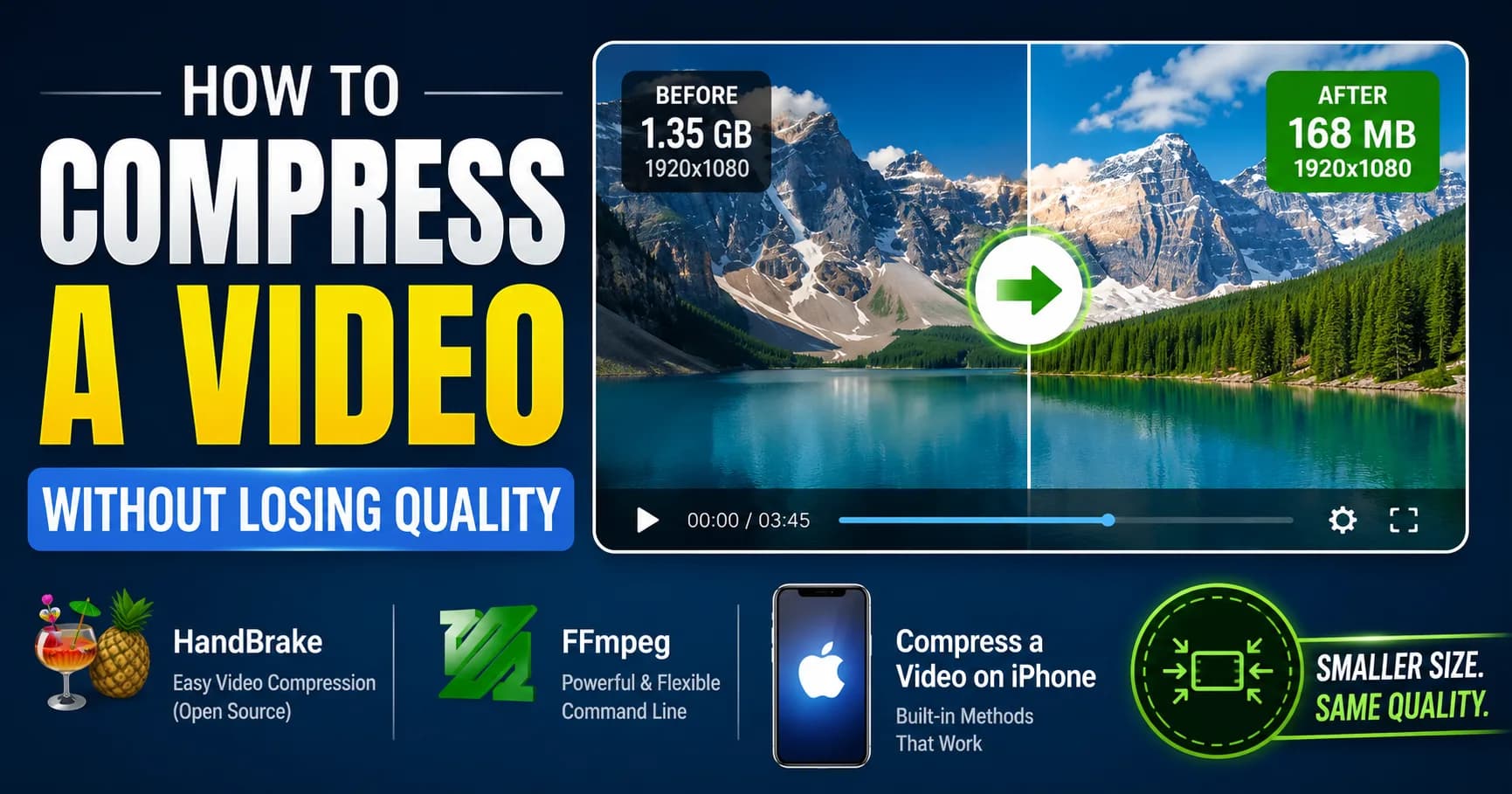
How to Compress a Video Without Losing Quality (2026 Guide — HandBrake, FFmpeg, iPhone)
HandBrake at CRF 22 is still the best free video compression setting in 2026. FFmpeg gives you more control. iPhone has a hidden trick most people miss. This guide covers every method — including the moment you should stop compressing and just send a share link instead. It's faster and the quality is always perfect.

Surya Prakash
Author
12 min read138
TL;DR: To compress a video without obvious quality loss in 2026: use HandBrake (free, GUI, Mac/Win/Linux) with the "Fast 1080p30" preset and CRF 22 — this typically cuts a video to 30–50% of its original size with no visible degradation. For more control, use FFmpeg directly:
ffmpeg -i input.mp4 -c:v libx264 -crf 22 -preset slow -c:a aac -b:a 128k output.mp4. On iPhone, just use the built-in Photos → Share → Compress option, or shoot in HEVC instead of H.264 to start. And here's the honest version most guides skip: if you're compressing because you're trying to email or share the file, compress less — or don't compress at all — and use a file-sharing service with a download link. A 4 GB video stays a 4 GB video after compression; it's still too big for Gmail. The fix is moving the file, not shrinking it.
I edit and ship a lot of video — product demos, screen recordings for documentation, raw client footage. So I've spent more time than I'd like in HandBrake's encoding presets. And here's the unhelpful truth most "how to compress a video" articles bury: for most "I need to send this somewhere" situations, you're solving the wrong problem.
Compression has limits. A 4 GB raw video file doesn't become a 25 MB Gmail attachment with any compression that preserves quality. You can drop a 4 GB file to 1 GB without visible loss; you cannot drop it to 25 MB and keep it watchable. So if compression is the only tool in your kit, you'll either end up with an unwatchable file or you'll give up.
The real workflow is: compress smart, then share through the right channel. This guide covers both halves — the actual compression methods that produce good quality, and the moment to stop compressing and switch to a file-share link instead.
When to Compress (and When to Stop)
Before the methods, the decision tree:
- Posting to web / streaming / social: YES, compress. Target 1080p H.264 / H.265, CRF 22–25. Final size 50–80% of original.
- Sending to a colleague via Slack / Teams / Discord: YES, but lightly. Most modern platforms accept up to 100 MB; target that.
- Emailing through Gmail / Outlook: USUALLY NO. Email limits are 25 MB outbound. Compressing a 500 MB video to 25 MB will destroy it. Use a file-sharing service instead — see my guide on sending large files via Gmail.
- Archival / backup: NO. Keep the master. Re-compress on demand.
- Sending raw footage to a video editor: NO. They want the master.
If your goal is to email a big video, stop compressing and read the file-sharing section at the end — you'll save yourself an hour and produce a better result.
Method 1: Compress a Video With HandBrake (Free, GUI, Recommended)
HandBrake is free, open-source, runs on Mac, Windows, and Linux, and has been the standard video-compression tool for over 15 years. Download from handbrake.fr.
Step 1: Install and open
Drag the app to Applications (Mac) or run the installer (Windows). Open it; drag your source video into the window.
Step 2: Pick a preset
The Presets panel on the right has dozens of options. The two I use 95% of the time:
- Fast 1080p30 — for general "make this smaller without thinking" jobs. Good balance of size, speed, and quality.
- Apple → Apple 1080p30 Surround — if the target device is iPhone, iPad, or Apple TV. Uses H.265 (HEVC) which gives smaller files.
Step 3: Verify the quality setting (this is the one that matters)
Click the Video tab. Look for Quality → Constant Quality (CRF, or RF in HandBrake's UI).
- 18 — visually lossless (huge file)
- 20–22 — visually lossless to most viewers (medium file)
- 23 — HandBrake's default, slight quality loss visible on side-by-side
- 24–28 — noticeably compressed, OK for low-bandwidth sharing
- 30+ — visible artifacts, blocky motion
For "compress this without losing quality" → CRF 22. For "make this as small as possible while still watchable" → CRF 26.

Step 4: Encode
Choose an output location (Save As at the bottom), then click Start Encode.
A 4 GB 1080p source typically encodes to ~1.5–2 GB at CRF 22 on Fast 1080p30. Encoding speed depends on your CPU — expect 0.5–2× realtime on a modern laptop.
Step 5: Compare quality
Open the original and the compressed file side-by-side. Look at motion-heavy scenes (camera pans, sports, fast cuts) — that's where compression artifacts show first. If you see blocking or banding, lower the CRF by 2 and re-encode.
Method 2: Compress a Video With FFmpeg (Command Line, Maximum Control)
FFmpeg is the tool HandBrake calls under the hood. Using it directly is more typing but gives you exact control.
Install
brew install ffmpeg              # Mac
sudo apt install ffmpeg          # Debian / Ubuntu
choco install ffmpeg             # Windows via Chocolatey
Basic command (H.264, equivalent to HandBrake's defaults)
ffmpeg -i input.mp4 \
  -c:v libx264 -crf 22 -preset slow \
  -c:a aac -b:a 128k \
  output.mp4
Breakdown:
-c:v libx264— H.264 video codec (universal compatibility)-crf 22— quality target (lower = better quality, bigger file)-preset slow— slower encoding for better compression. Other options:fast,medium,slow,veryslow.slowis the sweet spot.-c:a aac— AAC audio (universal)-b:a 128k— 128 kbps audio bitrate (transparent for most content)
H.265 / HEVC for smaller files
H.265 produces files about 30% smaller than H.264 at the same quality, but encoding is slower and not every player supports it natively.
ffmpeg -i input.mp4 \
  -c:v libx265 -crf 24 -preset slow \
  -c:a aac -b:a 128k \
  -tag:v hvc1 \
  output.mp4
The -tag:v hvc1 flag makes the file QuickTime-compatible on macOS.
Target a specific file size
If you need a file under exactly X MB (e.g., for a 100 MB upload limit), use two-pass encoding with a target bitrate:
# Target: 95 MB final size, ~5 min video
# Bitrate ≈ (95 MB × 8 ÷ 300 sec) = ~2530 kbps total
# Audio: 128 kbps, Video: ~2400 kbps

ffmpeg -y -i input.mp4 -c:v libx264 -b:v 2400k -pass 1 -an -f null /dev/null
ffmpeg -i input.mp4 -c:v libx264 -b:v 2400k -pass 2 -c:a aac -b:a 128k output.mp4
This is the only way to hit a specific size target reliably — CRF mode doesn't predict final size.
Method 3: Compress a Video on iPhone
iPhone records in H.264 or HEVC depending on settings. HEVC files are already about 30% smaller than H.264 at the same quality, so step one is making sure recording uses HEVC:
Settings → Camera → Formats → High Efficiency (instead of Most Compatible).
For an already-recorded video that's too big:
Option A: Photos app share-time compression
When you tap Share on a video in Photos and pick a destination like Mail or Messages, iOS automatically offers compression presets:
- High Quality — minimal compression (typically 70–80% of original)
- Medium Quality — ~40% of original, fine for most viewing
- Low Quality — ~10–15% of original, visible degradation
For email, pick Medium. For Messages / iCloud Link, High is fine.
Option B: Compressor / VideoSmaller apps
For more control, apps like Compressor (paid) or Video Compressor (free with ads) on the App Store give you target file-size sliders. Useful when you need a specific MB target.
Method 4: Compress a Video Online (Browser-Based)
Online video compressors work but with the same trust caveat as PDF tools: you're uploading your unencrypted video to their server. For sensitive content (interviews, raw client footage, personal videos), don't use them.
For non-sensitive content, the better options:
- CloudConvert — clean UI, supports CRF and bitrate targets
- VideoSmaller — basic but free, no signup
- FreeConvert — handles large files
All three accept files up to several GB on free tiers. Encoding happens in their cloud — slower than local but no software install.
How Much Can You Compress Without Losing Quality?
This is the question everyone wants a number for. Here's what I see in practice with 1080p H.264 source files:
| Source bitrate | After CRF 22 H.264 | After CRF 22 H.265 | Quality loss |
|---|---|---|---|
| 50 Mbps (raw camera) | ~6 Mbps | ~4 Mbps | None visible |
| 20 Mbps (high-quality export) | ~4 Mbps | ~3 Mbps | None visible |
| 10 Mbps (typical online video) | ~3 Mbps | ~2 Mbps | None visible |
| 5 Mbps (already-compressed) | ~3 Mbps | ~2 Mbps | Slight at busy scenes |
In other words: you can drop a high-bitrate source by 80% without visible loss. You cannot drop an already-compressed file by another 80% — there's no quality left to throw away. If your source is already 3 Mbps and you need it under 1 Mbps, expect visible artifacts.
When Compression Isn't the Answer — Use a File-Sharing Link
Here's the section I wish more compression guides included.
If you're compressing a video specifically to email it, you're going to hit a wall. Gmail's 25 MB outbound attachment cap means even an aggressively compressed 30-minute 1080p video won't fit. You'll either:
- Compress so aggressively that the file becomes unwatchable
- Spend an hour failing to hit 25 MB and give up
The cleaner workflow: compress lightly (CRF 22, target maybe 50% of original size) and send via a file-sharing service that handles the actual large file.
I use Uploadex for this — disclosure, I write for them — but any of the WeTransfer alternatives work. The recipient clicks a download link instead of an attachment. The file stays high-quality. The email itself is under 25 MB. No compression-quality tradeoff forced on you.
For the full email workflow with size limits and security controls, see my guide on how to send large files via Gmail and the step-by-step on sending large files securely.
Quick Reference: Best Settings by Goal
| Goal | Tool | Settings |
|---|---|---|
| Preserve quality, smaller file | HandBrake | Fast 1080p30, CRF 22 |
| Smallest watchable file | HandBrake | Fast 1080p30, CRF 28 |
| Hit a specific size | FFmpeg two-pass | Target bitrate ÷ duration |
| iPhone for sharing | Photos → Share | Medium Quality |
| Web upload (YouTube, etc.) | Don't compress — let the platform do it | Original quality |
| Email under 25 MB | Don't compress — use a file-share link instead | — |
FAQ: Video Compression
How can I compress a video without losing quality?
Use HandBrake with the Fast 1080p30 preset and CRF 22. This typically reduces file size by 50–70% with no quality loss visible to most viewers. For maximum compression with minimal quality loss, switch to H.265 (HEVC) and CRF 24 — produces files about 30% smaller than H.264 at the same visual quality.
What is the best video compression software?
HandBrake is the best free GUI option (Mac, Windows, Linux). FFmpeg is the best command-line option for maximum control. For paid software: Adobe Media Encoder integrates with Premiere Pro; Shutter Encoder is a free advanced GUI built on FFmpeg.
How do I compress a video to send via email?
For short videos under a few hundred MB, compress in HandBrake at CRF 26–28 to fit under your email's attachment limit (25 MB for Gmail, 20 MB for Outlook). For longer / higher-quality videos, do not compress to fit — instead, upload to a file-sharing service and email the share link. Aggressive compression to hit 25 MB destroys quality.
Does compressing a video reduce quality?
It depends on how aggressively you compress. Light compression (CRF 18–22 in HandBrake) is visually lossless to most viewers — file gets smaller, quality looks identical. Heavy compression (CRF 28+) introduces visible artifacts: blocking in motion, color banding in gradients, loss of fine detail. Pick CRF based on your tolerance.
What's the difference between H.264 and H.265?
H.264 (also called AVC) is the universal video codec — every device made since 2010 plays it. H.265 (HEVC) is the newer standard that produces files about 30% smaller at the same quality, but encoding is slower and some older devices / browsers don't support it. For maximum compatibility, use H.264. For smaller files when you control the playback environment, use H.265.
How do I compress a video on iPhone?
Use the Photos app — tap Share on a video, pick a destination like Mail or Messages, and iOS will offer compression presets (High / Medium / Low). For more control, use a third-party app like Video Compressor from the App Store. To prevent the problem upfront, set Settings → Camera → Formats → High Efficiency to record in HEVC (already 30% smaller than H.264).
Can I compress a 1 GB video to under 100 MB?
Yes, but expect quality loss. A 1 GB 1080p video compressed to 100 MB requires roughly an 8:1 compression ratio — beyond what's visually lossless. In HandBrake, try CRF 28 + the "Fast 720p30" preset (downscale + heavy compression). For better quality at the same size, use H.265 instead of H.264.
Summing Up!
For most "compress a video" needs, the answer is short: HandBrake, Fast 1080p30 preset, CRF 22. That setting alone solves 80% of compression questions and produces files most viewers can't distinguish from the original.
For finer control, FFmpeg. For iPhone, the built-in Photos share sheet. For browser-only, CloudConvert or VideoSmaller — but never with sensitive content.
And — the part most compression guides miss — if you're compressing to fit a file into an email or messaging app, you're solving the wrong problem. A 4 GB video doesn't become a 25 MB Gmail attachment without becoming unwatchable. Compress lightly (preserve quality), then send through a file-sharing service. See my guide on sending large files via Gmail for the exact workflow.
For the broader large-file workflow (security controls, password protection, link expiration), how to send large files securely walks through the full setup. For service comparisons, 9 Best WeTransfer Alternatives.
Sources:
- HandBrake official documentation
- FFmpeg encoding guide — H.264
- FFmpeg encoding guide — H.265