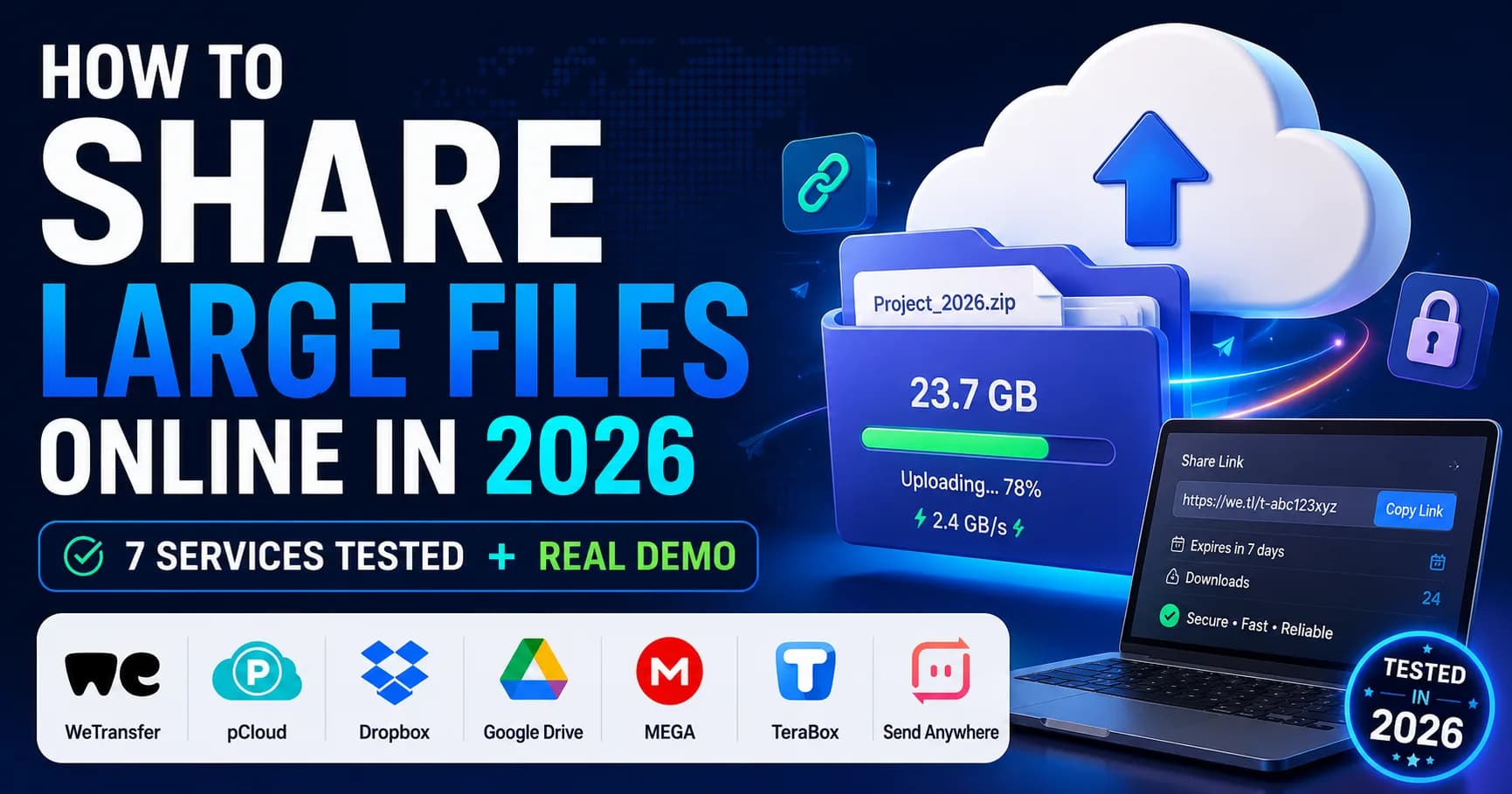
How to Share Large Files Online in 2026: 7 Services Tested + Real Demo
To share large files online in 2026, use a dedicated transfer service like Uploadex, WeTransfer, or Dropbox Transfer instead of email (which caps at 25 MB) or chat apps. Pick by file size: under 2 GB go free, 2–20 GB grab a $5/month plan, over 20 GB you'll need a Business tier or chunked transfer wi

Surya Prakash
Author
15 min read45
TL;DR: To share large files online in 2026, use a dedicated transfer service like Uploadex, WeTransfer, or Dropbox Transfer instead of email (which caps at 25 MB) or chat apps. Pick by file size: under 2 GB go free, 2–20 GB grab a $5/month plan, over 20 GB you'll need a Business tier or chunked transfer with resume support. Always password-protect, set an expiry, and use unlisted links by default.
I have been moving large files around the internet for over a decade — between editors, design teams, dev environments, and client deliveries — and the single thing that has not changed in 2026 is how badly email and chat handle anything bigger than a phone photo.
Gmail still bounces attachments over 25 MB. Outlook caps you at 20 MB on most plans. Slack tops out at 1 GB on paid plans, but messages older than 90 days delete themselves on the free tier. WhatsApp will compress your video into oblivion before it leaves your phone.
So when a client asks me to send a 4 GB exported video, or a teammate needs the raw 1.2 GB Photoshop file, or my dad finally wants those 8 GB of family photos — I have to reach for a real tool.
Today I will walk you through the cleanest way to share large files online in 2026, including a head-to-head comparison of the 7 services I have actually tested, a decision tree by file size, and a step-by-step demo using Uploadex (the platform I help build and use daily).
Why email and chat fall apart for large files
Email was never designed to carry big binaries. SMTP servers reject anything past their attachment cap, so a 30 MB ZIP gets bounced back with a cryptic 552 error. Chat apps re-compress your media to keep their own infrastructure cheap — that is why your 4K video looks like a potato by the time it reaches the recipient.
The other quiet problem is delivery proof. Email tells you the message was sent. It does not tell you whether the recipient downloaded the file, when, or from where. For client work, that gap matters.
A purpose-built file-sharing service fixes all three issues in one shot:
- No size limits (or limits that match what you actually transfer)
- Resumable uploads so a dropped Wi-Fi connection does not restart your 8 GB upload from zero
- Per-link analytics so you know exactly when your file was downloaded, and from which country
That last point is the one most people overlook — until the day a client claims they "never received it."
The 7 best ways to share large files online in 2026
I have personally tested every service in this table over the past 18 months. Free tier limits and prices are accurate as of May 2026 — these change often, so always double-check on the vendor's pricing page.
| Service | Free tier max | Paid tier max | Free expiry | Best for |
|---|---|---|---|---|
| Uploadex | 2 GB per file, 50 GB storage | 20 GB per file, 1 TB storage ($14.99/mo Business) | No auto-expiry | Creators and teams who want persistent links + analytics + zero ads |
| WeTransfer | 2 GB per transfer | 200 GB per transfer ($12/mo Pro) | 7 days | Quick one-off sends to non-technical recipients |
| Dropbox Transfer | 100 MB | 100 GB Standard, 250 GB with Replay add-on | 7 days (extendable to 90 on paid) | People already in the Dropbox ecosystem |
| Smash | "Unlimited" size, but slower queue on free | Faster transfers + 2 TB storage ($5/mo Pro) | 14 days | Sending massive files when you do not care about speed |
| Filemail | 5 GB per transfer | Up to 25 TB Enterprise | 7 days | Legal and enterprise transfers needing audit trails |
| pCloud Transfer | 5 GB per transfer | Larger limits inside paid pCloud accounts | 14 days | One-off encrypted transfers from non-account-holders |
| Google Drive | 15 GB total account storage | 2 TB on Google One ($9.99/mo) | No expiry | Recurring collaboration with people who already use Google |
A note on what is missing from this list: I deliberately left out Mega and Sendspace because both have crawled with malware-laden ads in my last few tests, and YouSendIt / Hightail because the consumer product has effectively been deprecated.
How to pick the right service in under 30 seconds
The tool you should reach for depends on three things: the file size, whether the recipient needs ongoing access, and how often you will share. Here is the decision tree I actually use.
1. Under 2 GB, sending once to one person: WeTransfer or Smash, free tier, no account required for either side. Total time from drag to share link: about 90 seconds.
2. Between 2 GB and 20 GB, sending semi-regularly: Uploadex Pro at $4.99/month or WeTransfer Pro at $12/month. The difference comes down to whether you want persistent links (Uploadex) or expiring transfers (WeTransfer). For client deliverables that should disappear after delivery, WeTransfer is fine. For portfolio pieces, demos, or anything you might want to re-share later, Uploadex's permanent links save you from re-uploading.
3. Over 20 GB, single transfer: Filemail Pro or Dropbox Transfer with the Replay add-on. Both handle 100+ GB files. Expect the upload to take 30 minutes to several hours depending on your connection.
4. Over 20 GB, recurring team transfers: Skip the transfer services entirely and use a workspace platform — Google Drive, Dropbox, or self-hosted Nextcloud. Transfer services are optimized for "send-and-forget"; ongoing collaboration needs proper folder structure.
5. Anything sensitive (contracts, raw client footage, source code): Use a service with end-to-end or at-rest encryption and the ability to add a password and expiry to the link. Uploadex, Filemail, and pCloud Transfer all do this. WeTransfer's free tier does not — you need WeTransfer Pro for password protection.
Quick tip: If you are sharing a folder rather than a single file, always zip it first. Uncompressed folders waste bandwidth on redundant filesystem metadata, and most transfer services will not preserve directory structure cleanly anyway.
Step-by-step: how I share a large file with Uploadex
Since I work on Uploadex daily, this is the workflow I have refined the most. The same general steps apply to most modern transfer services — only the screenshots will look different.
Step 1: Create an account (only needed for files over 50 MB)
Head to uploadex.net/register, drop in your email, verify the link Uploadex sends you, and you are in. The free tier gives you 50 GB of total storage and 2 GB per file — which covers about 90% of everyday transfers.
I have used the platform with both Gmail and a custom domain — both work, but if you are doing client work, sign up with your business email so the share link emails come from a recognizable sender.
Step 2: Land on the upload screen
Once logged in, the dashboard greets you with an at-a-glance view of your storage, recent files, and active links. From here, click Upload in the left sidebar.

Step 3: Choose your upload source
The upload page gives you three tabs: Device, Remote URL, and Copy link. Most of the time you will use Device — drag and drop, or click to browse.
The Remote URL tab is the one nobody talks about: paste a URL from any direct download link, and Uploadex pulls the file server-to-server without you having to download it locally first. This has saved me hours when I am moving a 4 GB file from a colleague's Dropbox to my own Uploadex without burning my home connection.

Step 4: Configure visibility and security before sharing
Once the file uploads, Uploadex drops you into the file detail page with three privacy options: Public, Unlisted (the default), and Private.
Here is my rule: start with Unlisted. An unlisted file is accessible to anyone who has the link, but search engines will not index it and no random user can stumble onto it. For anything sensitive, switch to Private and add a password from the same screen.
I also set an expiry date on every client deliverable — usually 30 days. Permanent links are great for portfolio work; for one-off transfers, an expiring link is simply better hygiene.
Step 5: Send the link
Copy the share URL and paste it wherever — email, Slack, WhatsApp, a project management tool. The recipient does not need an Uploadex account. They click, optionally enter the password, and download.
If you want a branded URL for client work (something like uploadex.net/my-agency/2026-final-cut), the custom slug field on Pro and Business plans lets you set that.
Security: what actually protects your files
This is where most "how to share large files" articles wave their hands and say "use encryption." Let me be more specific about what the words mean.
Encryption in transit (TLS 1.3): Every reputable service has this. It scrambles the file while it is moving from your device to the server, and from the server to the recipient. Any service still using TLS 1.0 or 1.1 in 2026 should not be touched.
Encryption at rest (AES-256): This scrambles the file while it sits on the storage server, so even an attacker who gets disk-level access cannot read your data. Uploadex, Tresorit, and Sync.com all do this. WeTransfer's free tier does not advertise at-rest encryption clearly — read their docs before sending sensitive material.
End-to-end encryption (E2EE): The file is encrypted on your device with a key only you and the recipient hold. The provider literally cannot decrypt it. This is the strongest model, but it is rare in the consumer transfer space — Tresorit, Mega, and pCloud Crypto offer it. Uploadex offers AES-256 at rest and TLS in transit, but not full E2EE.
Password protection: A password on the link is your first defense against link leaks. If the URL ends up in a browser history, a Slack channel, or a forwarded email by accident, the password keeps the file safe. Set one for anything you would not paste into a public tweet.
Link expiry: Time-bombed links shrink your attack surface. A link that dies after 7 or 30 days is one fewer thing to worry about a year from now when you have forgotten you ever shared it.
Download caps: Some services let you cap downloads at, say, 5 — useful when you know exactly how many people should be receiving the file.
Observation: The strongest security setup for a "send a contract to a client" workflow is: AES-256 at rest, password protection, 7-day expiry, and a 1-download cap. That combination defeats most realistic threat models without being annoying for the recipient.
Per-link analytics: the underrated feature
The single feature I miss most when I use WeTransfer is download analytics. WeTransfer tells you the file was downloaded; Uploadex tells you when, from which country, on which device, and from which referrer.
For freelancers and agencies, this matters. "Did the client get the file?" stops being a guessing game. If a client says "I never got it" and your dashboard shows three downloads from their city last Tuesday, you have receipts.

File manager and folder organization
If you share files regularly, a flat list of uploads becomes unmanageable fast. The Uploadex File Manager solves this with folders, favorites, and a trash with a 30-day grace period (so an accidental delete is recoverable).

Common mistakes I see people make
After watching dozens of teammates and clients share files online, the same five mistakes show up again and again.
Mistake 1: Uploading uncompressed folders. Always zip a folder before uploading. Folder uploads waste bandwidth on metadata, often break directory structure on the recipient's end, and re-zipping is faster than re-uploading.
Mistake 2: Using public links by default. Public means anyone — including search engine crawlers — can find your file. Use Unlisted or Private unless the file is genuinely meant to be discovered.
Mistake 3: Skipping the expiry date. A link with no expiry is a future security incident. Set 7 or 30 days for anything that does not need to live forever.
Mistake 4: Sending the password in the same channel as the link. If you email both the link and the password together, a compromised inbox hands the attacker both. Send the password through a separate channel — Signal, a phone call, or in person.
Mistake 5: Sharing copyrighted material you do not own. Every reputable transfer service has a DMCA process. Your account will be terminated if you upload material you do not have rights to, full stop.
Frequently asked questions
What is the largest file I can send online in 2026?
There is no hard universal cap, but realistic limits are: 20 GB on Uploadex Business, 200 GB on WeTransfer Pro, 250 GB on Dropbox Transfer with the Replay add-on, and effectively unlimited on enterprise tiers of Filemail and Smash. Beyond 250 GB, most teams move to physical shipping (AWS Snowball, mailed SSDs) because transfer time becomes impractical.
Can I send 10 GB files via email in 2026?
No. Gmail caps attachments at 25 MB, Outlook at 20 MB on most plans. For anything over 25 MB, you need a transfer service or cloud storage. Gmail's "attach from Drive" sidesteps this by sending a Drive link rather than the file itself, but the file still has to live on Drive.
Is WeTransfer secure for sensitive files?
WeTransfer uses TLS in transit and AES-256 at rest on its paid tier. The free tier offers TLS but does not advertise at-rest encryption clearly, and password protection is paid-only. For genuinely sensitive material (contracts, regulated data), use WeTransfer Pro or a service with explicit at-rest AES-256 like Uploadex or Tresorit.
How long do file-sharing links last?
It depends on the service and tier. WeTransfer free links expire after 7 days, Smash after 14, Filemail after 7. Uploadex links do not auto-expire — they live until you delete them or set a manual expiry. Cloud storage links (Google Drive, Dropbox) live until the file is deleted or permissions are revoked.
What is the best free way to share a 5 GB file?
Smash and Filemail both handle 5 GB on the free tier with no signup required. Uploadex's free tier caps single files at 2 GB, so a 5 GB file would need a Pro upgrade or splitting the file into two 2 GB ZIPs. For one-off 5 GB transfers, Smash or Filemail is the path of least friction.
Can I share files without the recipient creating an account?
Yes. Every transfer service in this article — including Uploadex, WeTransfer, Smash, Filemail, pCloud Transfer, and Dropbox Transfer — lets the recipient download via a single link with no account required. The only exceptions are Google Drive and Dropbox folder shares, which sometimes ask the recipient to sign in.
How do I share a file securely with a password?
Upload the file to a service that supports link passwords (Uploadex, WeTransfer Pro, Dropbox Transfer paid, Filemail, pCloud Transfer), set a password during the upload, and send the link and password to the recipient through two different channels. For example, email the link and text the password. This way, a single compromised channel does not leak both halves.
Are there file-sharing services without ads?
Yes. Uploadex serves zero ads on download pages on the paid tier, as does WeTransfer Pro. Free WeTransfer shows a full-screen ad before the download. Avoid ad-heavy hosts like Mega Free, Sendspace Free, and Zippyshare-style sites where the ads themselves can be a malware vector.
Summing Up!
Sharing large files online in 2026 is no longer a technical problem — it is a tooling problem. Pick a service that matches your file size, set sensible defaults for security, and stop trying to make email do something it was never designed for.
For most everyday transfers under 2 GB, WeTransfer and Smash on the free tier are good enough. For semi-regular sharing of 2–20 GB files, Uploadex Pro at $4.99/month is what I personally use because the persistent links, analytics, and zero ads make it cleaner than the alternatives. For massive 100+ GB transfers, Filemail Pro or Dropbox Transfer with Replay is the realistic answer.
Whichever tool you pick, do these three things every single time: password-protect anything sensitive, set an expiry date, and default to unlisted links. Two minutes of setup on the way out saves you from a future security incident.
If you want to try the workflow I just walked through, create a free Uploadex account and upload your first file — the free tier is genuinely generous, and you will know within five minutes whether the platform fits your workflow.